Skip to content
Own YourIntelligence

The product · A guided tour

Brainoid IO

One integrated app for your knowledge. Bring written ideas, audio, AI conversations and past AI workflows into a connected workspace — and build on what you already know.

Request alpha access

The app is free for personal use (local models are free; optional cloud AI is paid for separately).
Limited alpha 0.0.1 · Apple silicon, macOS 26 or later

Your knowledge

Brainoid IO on your computer connects three offerings. These work together, rather than being numbered steps.

One unified knowledge library, private, connected

  • Notes
  • Meeting Recordings
  • AI Chat history
  • AI Coding history

A librarian that gives you what is relevant

Auto-Memory connects knowledge from your work and enriches it automatically. The network includes notes, images, code, conversations, audio and contacts.

Teach Autonomous AI Employees to work for you

Your AI Employee works in its own isolated virtual computer. Example applications:

  • Email Assistant
  • 24/7 IT Monitoring
  • Customer Service
  • Co-Scientist

Private by default. Under your control.

An asset you own and evolve.

Product tour · Limited alpha 0.0.1. Explore the product’s tools and how they connect. Features vary by build. App views use illustrative content. About alpha access.

The integrated workspace

All in one place, connected

Notes, recordings, AI conversations and coding sessions belong to the same body of knowledge. Each tool does its own job; together they keep your work connected instead of scattered across applications.

Notes

Your written knowledge

Give your ideas a place to grow.

Write, organise and connect your thinking. Keep project briefs, research, plans and decisions together in a notes app that belongs to the same workspace as your recordings and AI conversations.

  • Markdown notes you keep
  • Folders, tags and full-text search
  • Links, backlinks and a graph of ideas
  • Notes that can inform your workspace’s memory
More about Notes

Move between writing and reading, keep notes open in tabs, and follow connections through links or the graph. Your notes remain your source material; Auto-Memory builds its understanding from the sources you include.
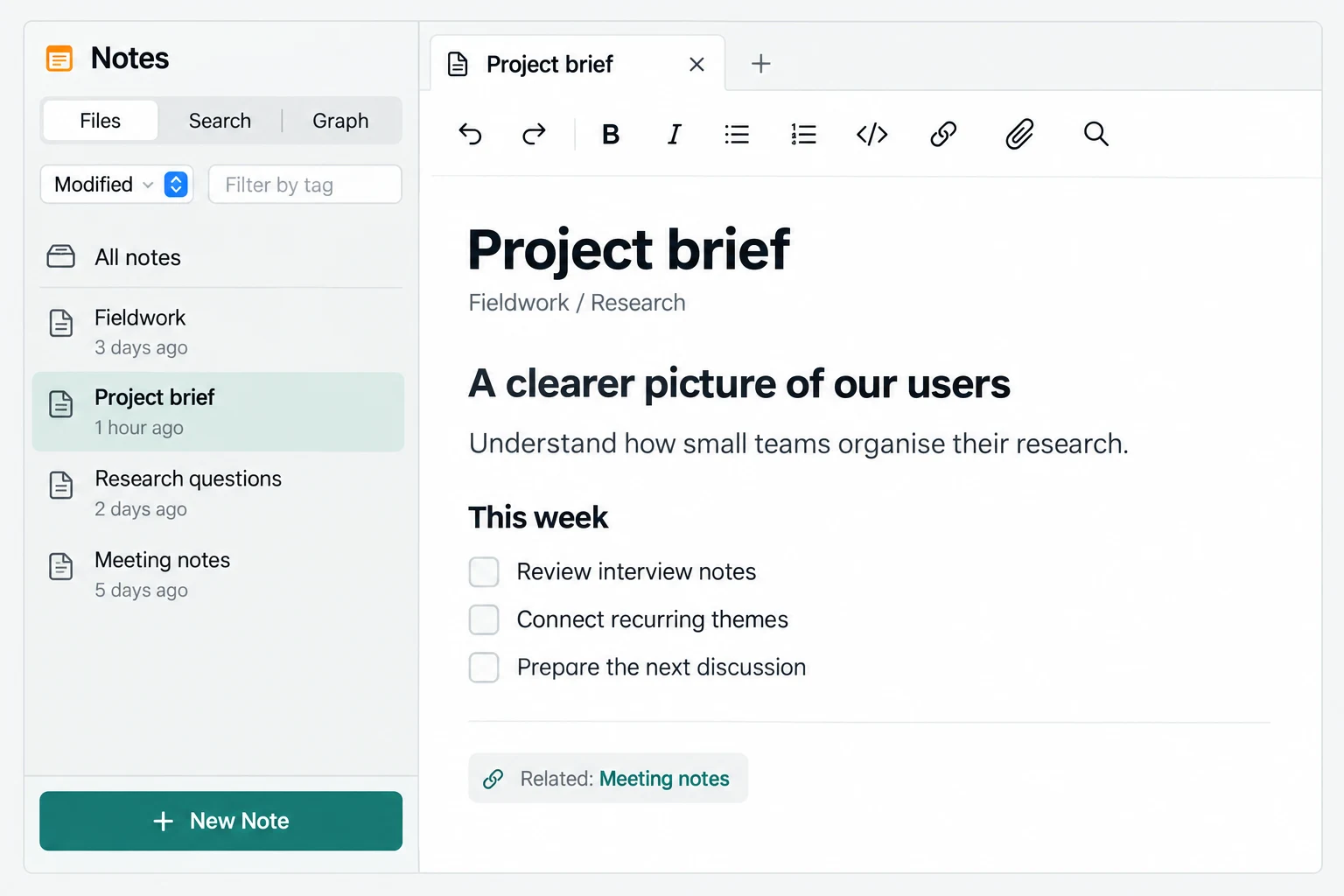
Illustrative Notes view: the Fieldwork project brief beside a list of related research and meeting notes.
Fieldwork begins with a brief and a few connected notes.Illustrative app view · Example contentView full image

How you use it

  1. Create a project brief.
  2. Link the notes that give it context.
  3. Find and develop those ideas as your project moves on.

The brief you write here can provide context for a later AI conversation.
Speech

Recording and transcription

Keep the thinking that happens out loud.

Record a discussion or bring in audio you already have. Turn conversations into text you can review and reuse, alongside everything else your workspace knows.

  • Record microphone and system audio
  • Import recordings made elsewhere
  • Transcribe locally, with speakers told apart
  • Review, play back and export transcripts
More about Speech

Capture your microphone and computer audio together or separately. Use the Audio, Transcript and Export views to move from the original recording to useful text. Audio recorded in the app can be deleted; removing an imported recording does not delete its original file.

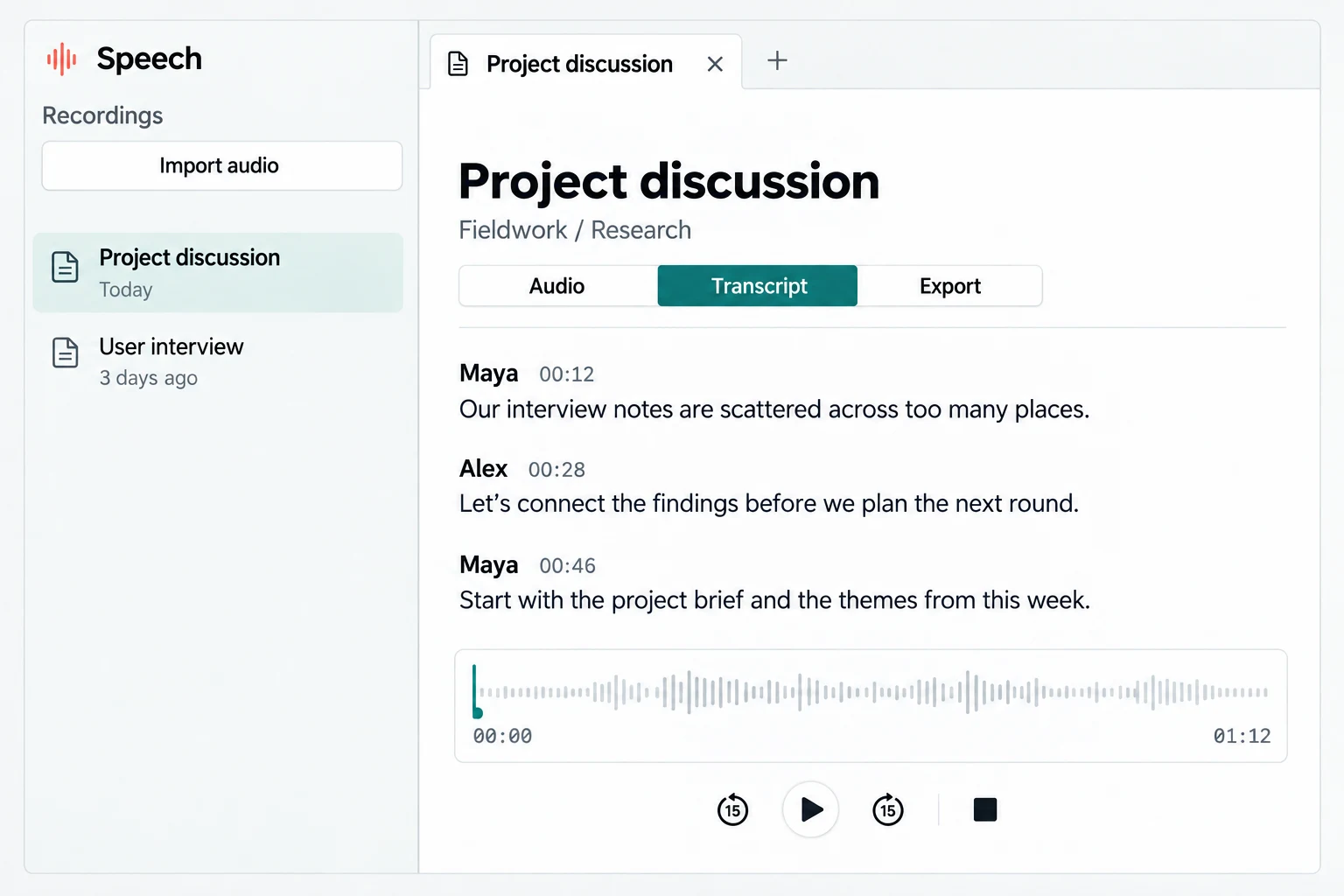
Illustrative Speech view: Maya and Alex’s project discussion, with speaker-labelled transcript, timestamps and playback controls.
The project discussion becomes a transcript you can revisit.Illustrative app view · Example contentView full image

How you use it

  1. Record a discussion or import audio.
  2. Transcribe it and review what each person said.
  3. Reuse the transcript as a note and a source of knowledge.

A discussion becomes knowledge you can revisit in Notes and draw on in Chat.

Chat

AI conversations with your knowledge

Start with context, not a blank slate.

Think through a question with AI in the workspace where your knowledge lives. Choose your model and whether memory is available as context, while keeping the conversation for future work.

  • Local models or remote models you allow
  • Memory and web-search choices in the conversation
  • Conversations kept in your workspace
  • Direct and AI Employee conversation routes
More about Chat

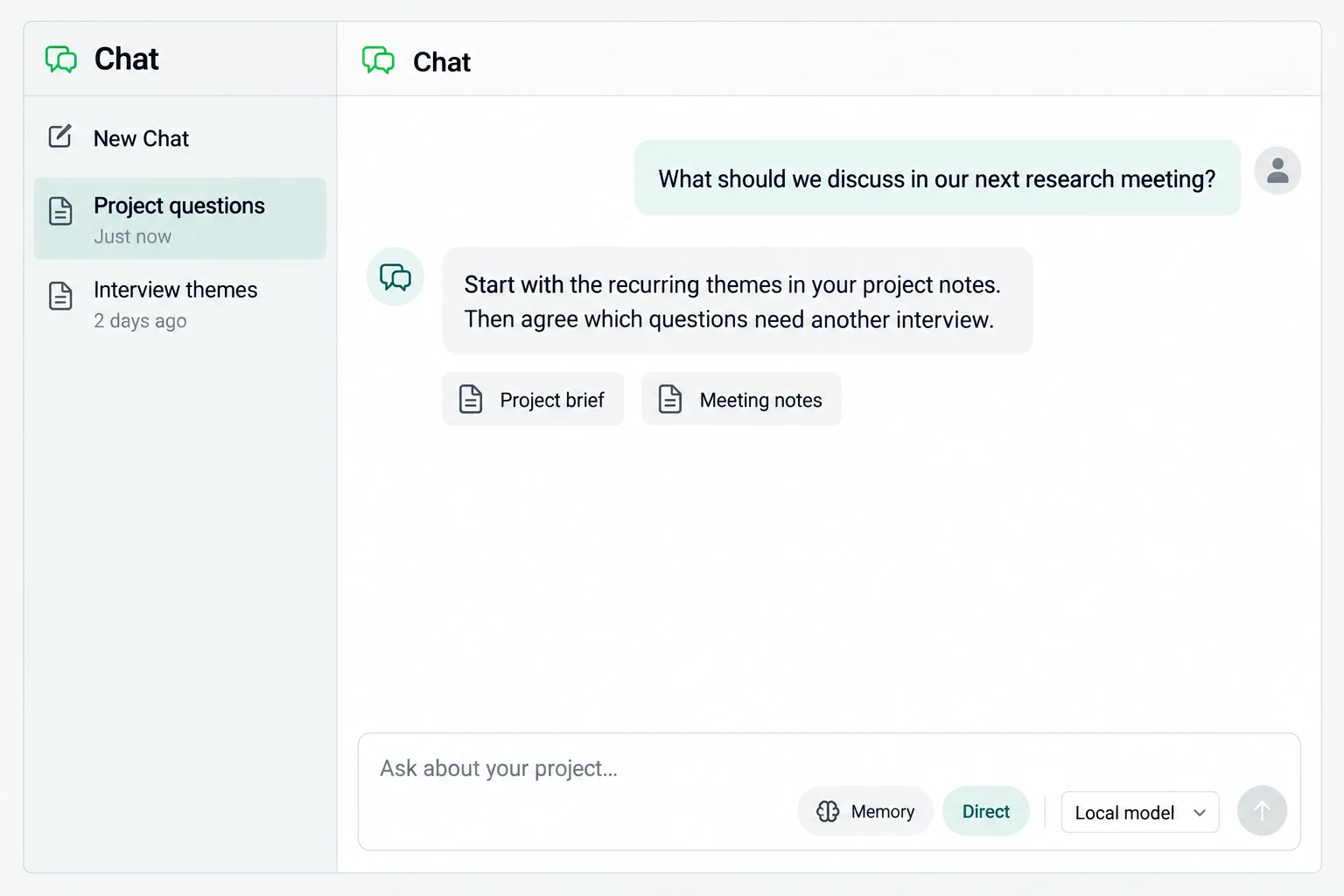
Direct sends a message to the chosen model. AI Employee sends it through your configured employee. Your model, memory and web-search choices stay as you set them until you change them. A model that is unavailable is reported rather than silently replaced.

Illustrative Chat view: a question about the next research meeting, an example answer and context from Project brief and Meeting notes.
Ask the next question with your project’s context at hand.Illustrative app view · Example contentView full image

How you use it

  1. Choose a model and the context it may use.
  2. Ask a question about your project.
  3. Review the answer and its sources, then continue the conversation.

Your notes and recorded discussions give the conversation a useful starting point.

Brainoid Code

Optional

Coding agents and computer automations

Build software. Automate the repetitive work.

Work with coding agents to create software and automations for tasks on your personal computer. Keep your projects and earlier coding sessions close to the work they support.

  • Work with a coding agent on a repository
  • Create scripts and task automations
  • Return to earlier coding sessions
  • Choose the model your coding agent uses
More about Brainoid Code

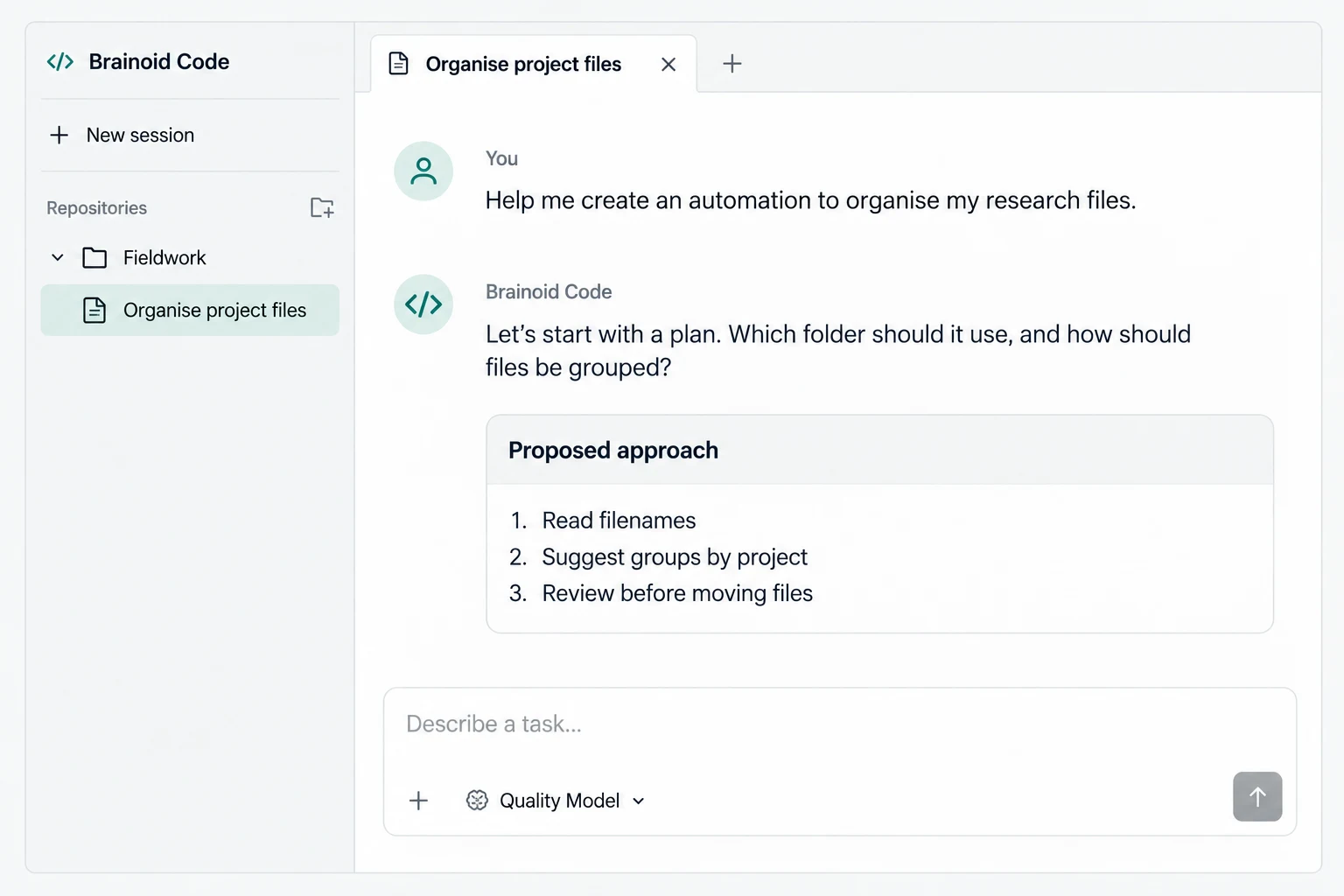
Add an existing repository or choose to copy it into the workspace’s Code folder. Brainoid Code runs on your Mac and is not the AI Employee’s isolated virtual computer. Review what an automation can access and do before running it.

Illustrative Brainoid Code view: a Fieldwork session planning an automation to organise research files, before any files are moved.
Describe a recurring task, then develop and review an automation.Illustrative app view · Example contentView full image

How you use it

  1. Open a project and describe the task.
  2. Review the proposed changes or automation.
  3. Test the result and refine it in the same session.

An automation can turn a recurring part of your knowledge work into a reusable process.

Different forms of knowledge. One project.

In our fictional Fieldwork project, the brief records the intent, the discussion adds new thinking, and the AI conversation helps explore what comes next. Their context belongs together. Capture a discussion in Speech, keep the useful thinking in Notes, recall it through Auto-Memory and put it to work in Chat or a configured AI Employee.

Project briefWritten in Notes
Project discussionTranscribed in Speech
Project questionsExplored in Chat

Knowledge that grows with your work

Compounds automatically

Auto-Memory builds a connected understanding from your workspace’s supported sources. New work enriches that knowledge, so the next question can start with more context.

Auto-Memory

Your notes and recordings are the source material. Auto-Memory is the understanding built from them: relevant details, connections and context you can bring back into your work.

It keeps itself current automatically from supported sources, while giving you ways to inspect its sources, correct its understanding and decide what it should forget. Included notes, transcripts and conversations enrich the memory; other folders need your permission. Useful output saved back into supported workspace sources can inform later work too.

Recall

Find relevant knowledge and trace it to its sources.

Capture

Add information directly to your workspace’s memory.

Revise

Review remembered information and resolve conflicting details.

Forget

Choose what to remove and review the effect before confirming.

Sources, updates and control

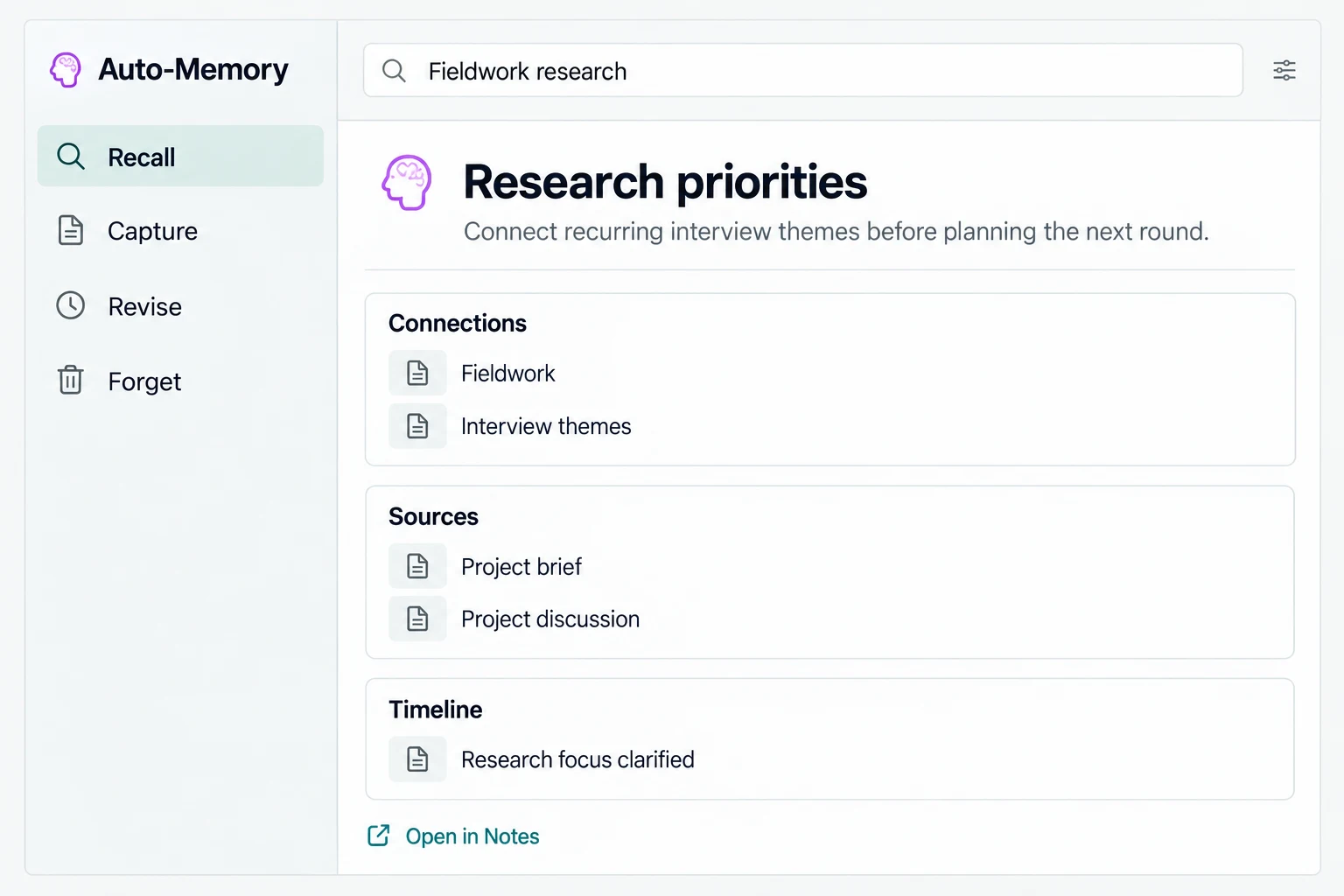
Recall a topic, open its details and follow the sources behind it. Review connections and earlier versions, or open a source in Notes. You can also capture information directly, run an update when needed and take a copy of your memory with you. Your original notes remain distinct from the knowledge built from them.

Illustrative Auto-Memory view: Recall, Capture, Revise and Forget beside a Fieldwork research priority, its connections and sources.
A research priority, connected to the work it came from.Illustrative app view · Example contentView full image

How you use it

  1. Work in your project’s notes, recordings and conversations.
  2. Recall a topic and inspect the knowledge and sources returned.
  3. Revise what needs attention as your understanding develops.

Knowledge put to work

Comes to life through your AI Employees

An AI Employee needs both knowledge of your work and an understanding of how you want it done. You build the first through Auto-Memory, and the second through teaching and practice.

Knowledge from Auto-Memory

Your project’s context, earlier decisions, documents and experience give the employee something meaningful to work with. It can draw on accumulated knowledge instead of starting each task from a blank slate.

Learning by doing

Teach a task and its process. Supervise attempts, explain mistakes and refine the approach. Retained instructions and feedback guide future work, building know-how you own.

Work with it where you communicate.

WhatsAppTelegramChat

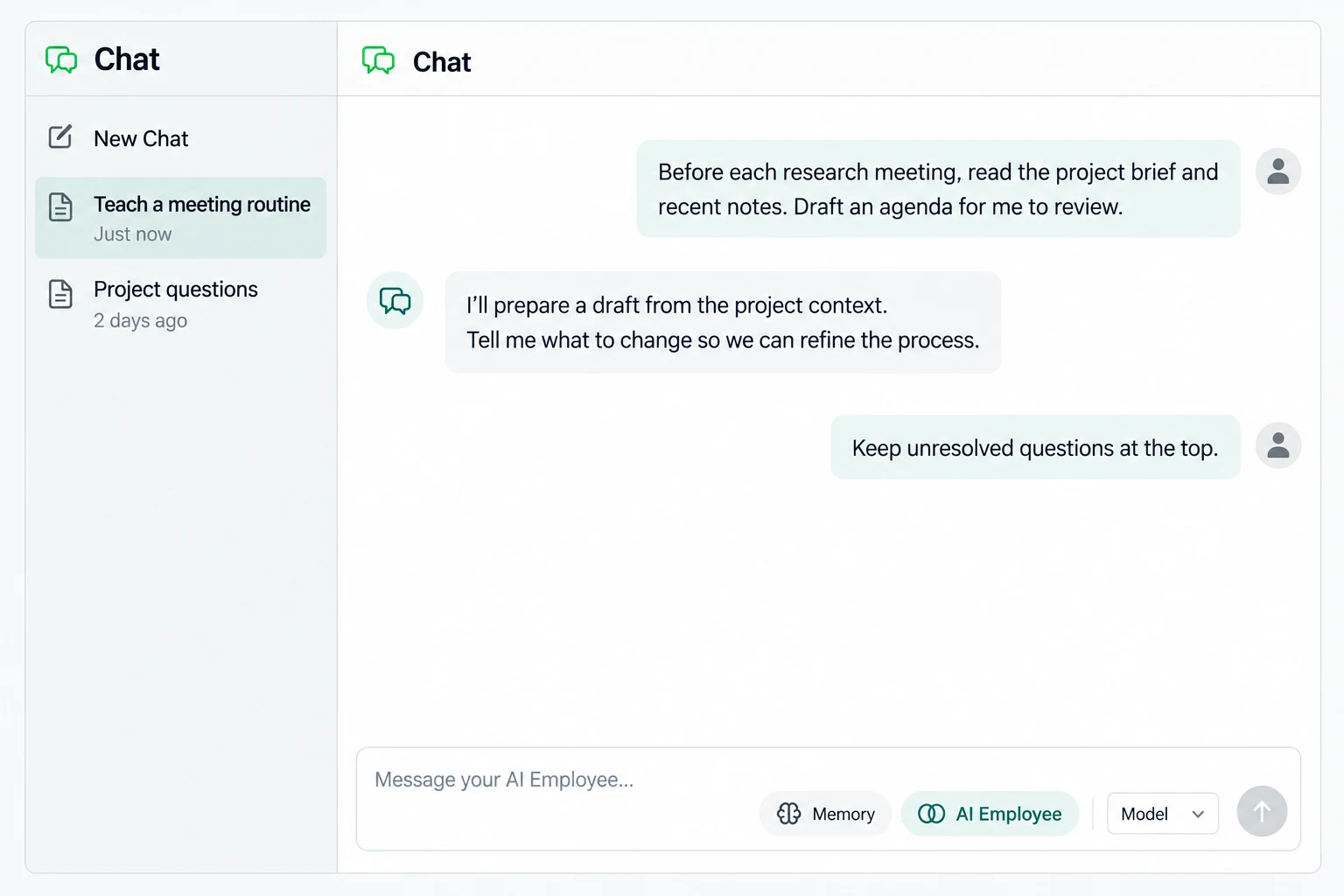
Give instructions, review work and offer corrections through WhatsApp, Telegram or Chat. In the app’s Chat, select the AI Employee route to talk to your configured employee.

The AI Employee section is where you set it up and manage its capabilities. The conversation happens in Chat or a connected messaging channel.

Its work runs in its own isolated virtual computer. Explore workspace and access boundaries.

Setup, scheduled work and availability

Choose a Persona, set up the isolated computer and connect the tools or messaging channels you want it to use. Tasks can run on a schedule, and web search can support work that needs it. These capabilities require the relevant setup and a build that supports them.

Illustrative conversation in Chat with the AI Employee route selected: the user teaches a meeting preparation routine and corrects how the agenda should be ordered.
Teach and refine a process through Chat with your AI Employee.Illustrative app view · Example contentView full image

Start with supervision. Build towards delegation.

  1. Teach

    Explain the goal, demonstrate the process and show what good work looks like.

  2. Supervise

    Review early attempts. Keep decisions and important actions under your supervision.

  3. Correct and practise

    Turn feedback into retained instructions. Try the process again and refine it.

  4. Delegate progressively

    Reduce supervision as it demonstrates reliable performance on that task.

The learning phase matters. The goal is a repeatable process that improves through feedback, with less supervision as it proves reliable. The knowledge, instructions and workflows you develop remain yours to keep, correct and evolve.

Example applications

Roles you could develop with the right knowledge, teaching and connections. These illustrate possibilities, rather than integrations included in the current alpha.

Email Assistant

Prepare correspondence using the context of your projects and the way you like to communicate. Review drafts as you teach the process.

24/7 IT Monitoring

Monitor connected systems and surface issues using procedures you establish. Continuous monitoring needs an always-on deployment and the relevant connections.

Customer Service

Use product knowledge and taught support procedures to help with customer questions, including when to bring a person into the conversation.

Co-Scientist

Assist research with accumulated knowledge, documented methods and processes developed with you. Keep scientific judgement and validation in the loop.

Examples of recurring work

A configured employee could prepare a morning meeting brief from project notes, produce a weekly review of decisions and open questions, answer a workspace question through a connected messaging channel, or research a topic on the web and save the useful findings. Set the schedule and permissions, review early results and keep the process under supervision until it is reliable. These examples require setup and a supporting build.

Getting started

Start small. Let it compound.

You do not have to move your whole working life in at once. One workspace and one useful task are enough to begin.

  1. 01

    Open a workspace

    Install Brainoid IO, sign in with your free Brainoid account and choose one project to begin with.

    About alpha access →
  2. 02

    Bring in your knowledge

    Start with a project brief, a folder of notes or a recorded discussion. Review the source material and connect what belongs together.

    Explore the knowledge tools →
  3. 03

    Teach one useful task

    In a build that supports the AI Employee, choose a recurring task, show how you do it and supervise its attempts. Refine the process before delegating more.

    How teaching works →
  4. 04

    Keep building

    Add new notes, meetings and decisions. Inspect what memory recalls, correct what needs attention and develop reusable processes as your project grows.

    Explore Auto-Memory →

These are phases of adoption, not a timetable. You can request access to explore the available tools and give us feedback.

Request alpha access

The app is free for personal use (local models are free; optional cloud AI is paid for separately).
Limited alpha 0.0.1 · Apple silicon, macOS 26 or later

  • Mac with Apple silicon
  • macOS 26 or later
  • Free Brainoid account
Building a startup? Explore collaboration and setup support →

Looking ahead

More ways to work together.

These optional additions are planned; they are not included in the current alpha.

Planned

Team

Share a workspace with the people you work with, each with the access you give them.

Planned

Automation Studio

Make your agents more reliable, so they can decide and act with less hand-holding.